Disclaimer: Syntium Algo and all affiliated parties are not registered as financial advisors. The information provided on this site, along with the products and services offered by Syntium Algo, are intended for educational purposes only and should not be interpreted as financial advice. It is important to understand the risks involved in trading and be willing to accept any level of risk when investing in financial markets. Please note that past performance is not necessarily indicative of future results. Syntium Algo and all individuals associated with the company has no responsibility for your trading results or invest decisions. It is recommended to conduct through research, seek professional advice, and carefully consider your financial situation before making any trading or investment decisions.

You spotted the perfect signal on TradingView. Then you had to open your trading app, find the pair, type the lot size and place the order by hand. By the time you clicked buy, the price had moved. If that sounds familiar, it is time to connect TradingView alerts to a broker so your trades happen the moment a signal fires.
This guide shows you how it works, the three main ways to set it up and a step-by-step walkthrough for MT5. It is written for Syntium Algo users, but the same steps work for most TradingView indicators and most brokers.
Table of Contents
How to Connect TradingView Alerts to a Broker: Quick Answer
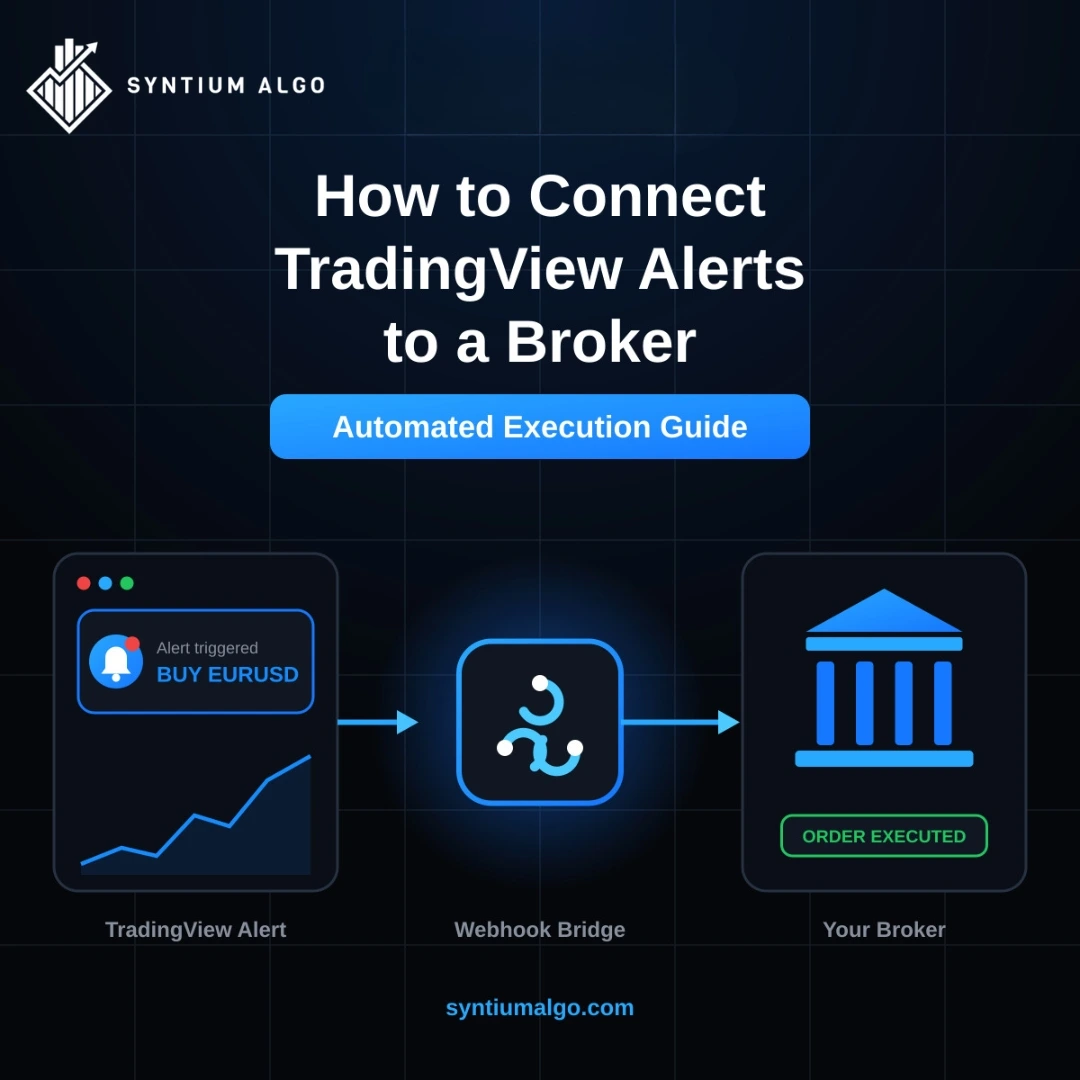
TradingView alerts send messages. They do not place trades by themselves. To turn an alert into a live order, you need three things:
- A signal source: an indicator like Syntium Algo that triggers the alert.
- A webhook: the alert sends a short message to a URL the moment it fires.
- An execution layer: a bridge tool or script that reads the message and places the order with your broker.
Why TradingView Alerts Do Not Trade on Their Own
Many traders expect an alert to open a trade automatically. It does not. A TradingView alert is a notification. It can pop up on screen, send an email, ping your phone or send a webhook. That is where its job ends.
Even if your broker is linked to TradingView’s trading panel, alerts still do not place orders there. The trading panel is for manual trading from your chart. Automation needs something in the middle that listens for the alert and acts on it.
That middle piece is the webhook. Think of it as a digital courier. TradingView hands over a note saying “buy EURUSD now”, and the courier delivers it straight to the tool that talks to your broker.
What You Need Before You Start
- An active Syntium Algo plan so you have reliable buy and sell signals. See our pricing plans.
- A paid TradingView plan. Webhook alerts are not available on the free plan.
- Two-factor authentication (2FA) switched on in TradingView. Webhooks will not send without it.
- A broker account with a demo account for testing. MT4 and MT5 brokers are the most common choice for forex and CFDs.
- A VPS (virtual private server) if you use MT4 or MT5, so your terminal stays online when your computer is off.
3 Ways to Connect TradingView Alerts to Your Broker
There is no single right method. The best one depends on your broker, your markets and how hands-on you want to be.
Method 1: Alert Plus Manual Order in the Trading Panel
Your alert notifies you, and you place the trade yourself from TradingView’s built-in trading panel if your broker supports it. This is semi-automatic. It is slower, but you keep full control over every trade.
- Best for: beginners and traders who want to check every signal.
- Downside: you still have to be at the screen.
Method 2: A Webhook Bridge to MT4 or MT5
This is the most popular route for forex and CFD traders. A bridge service gives you a webhook URL and a small Expert Advisor (EA) for your MetaTrader terminal. Your alert hits the bridge, and the EA places the trade in MT4 or MT5.
- Best for: forex, gold, indices and CFD traders on MetaTrader brokers.
- Downside: most bridges charge a monthly fee, and your terminal must stay online.
Method 3: Your Broker’s API
Some brokers and crypto exchanges offer an API. You can run a small script on a server that receives the webhook and sends the order through the API. It gives you the most control, but it needs some coding skill. We cover this route for crypto in our guide to building autonomous AI trading agents.
- Best for: developers and crypto traders.
- Downside: you are responsible for security, uptime and bug fixes.
| Method | Speed | Coding Needed | Cost |
|---|---|---|---|
| Alert + Manual Order | Slow | None | Free with TradingView |
| Webhook Bridge to MT4/MT5 | Fast | None | Bridge fee + VPS |
| Broker API | Fast | Yes | Server cost |
For most Syntium Algo users trading forex, the bridge method is the easiest way to connect TradingView alerts to a broker without writing any code.
Step-by-Step: Connect TradingView Alerts to a Broker on MT5
Here is the general setup for the bridge method. Every bridge tool has small differences, so always follow its own setup guide alongside these steps.
- Open a demo account with your MT5 broker. Always test on demo first.
- Sign up for a webhook bridge and copy your webhook URL and licence or account ID.
- Install the bridge’s EA in MT5. Drag it onto a chart and switch on Algo Trading in the toolbar.
- Allow web requests if the bridge asks for it. In MT5, go to Tools > Options > Expert Advisors and add the bridge URL to the allowed list.
- Add Syntium Algo to your TradingView chart. Use the same symbol your broker uses, such as EURUSD or XAUUSD.
- Create a buy alert. Pick the Syntium Algo buy signal as the condition and set the trigger to Once Per Bar Close.
- Add the webhook. In the Notifications tab, tick Webhook URL and paste your bridge URL.
- Write the alert message in the exact format your bridge asks for. It usually includes your ID, the action, the symbol and your risk.
- Repeat for the sell alert.
- Watch it on demo for at least two weeks before going live.
Here is an example of what a bridge message often looks like. Your bridge’s format may be different, so copy theirs exactly:
YOUR_LICENCE_ID,buy,{{ticker}},risk=1- {{ticker}} is a TradingView placeholder. It fills in the chart symbol automatically.
- risk=1 tells the bridge to risk 1% of your account, if your bridge supports percentage risk.
- Add a stop loss and take profit if your bridge allows it. Never run trades without a stop loss.
Need help with the alert window itself? See how to set alerts on TradingView and our TradingView alerts docs.
Choosing a Broker for TradingView Automation
Your broker matters as much as your signals. A slow or unreliable broker can turn a good signal into a bad trade. Look for:
- Strong regulation from a trusted authority such as the FCA. Our guide to regulated forex brokers explains what to check.
- MT4 or MT5 support if you plan to use a bridge.
- Fast execution and low spreads, so automated orders fill close to the signal price.
- Matching symbol names, or a bridge that lets you map symbols like XAUUSD to GOLD.
- A free demo account so you can test before risking real money.
Syntium Algo works with partner brokers Star Trader and PU Prime. Both are worth comparing if you are opening a new account. Prefer to follow other traders instead? Read about our copy trading system.
Problems When You Connect TradingView Alerts to a Broker
| Problem | Likely Cause | Fix |
|---|---|---|
| Alert fires but no trade opens | Algo Trading is off, or the EA is not running | Switch on Algo Trading and check the EA on the chart |
| Webhook option is greyed out | 2FA is off or you are on the free plan | Turn on 2FA and use a paid TradingView plan |
| “Symbol not found” error | TradingView and broker use different names | Map the symbol in your bridge settings |
| Trades open twice | Duplicate alerts on the same chart | Delete old alerts before making new ones |
| Trades stop overnight | Your computer slept or MT5 closed | Run MT5 on a VPS |
| Signal looks different later | Alert set to Once Per Bar | Use Once Per Bar Close and non-repainting signals |
Automate Your Trading With Signals You Can Trust
Fast execution is pointless without good signals. Syntium Algo gives you non-repainting buy and sell signals for forex, crypto, stocks, indices and commodities, with no coding needed.
See Plans Join Free TelegramFAQs
Can I connect TradingView alerts to a broker for free?
Not fully. Webhook alerts need a paid TradingView plan, and most bridge tools charge a fee. The free option is to receive alerts and place trades by hand.
Do TradingView alerts place trades automatically?
No. Alerts only send notifications. You need a webhook and a bridge or script to turn them into orders.
Does this work with MT4 as well as MT5?
Yes. Most bridge tools support both MT4 and MT5. Check the bridge’s guide for the right EA version.
Do I need a VPS?
If you use MT4 or MT5, yes. A VPS keeps your terminal running around the clock, so no signal is missed.
Final Thoughts
Once you connect TradingView alerts to a broker, you stop chasing price and start trading on time. Start on demo, keep your risk small and only go live when the results match your expectations. If you get stuck, our 24/7 support team is here to help, or check our general FAQs.
Disclaimer: This article is for educational purposes only and is not financial advice. Trading forex, CFDs, crypto and other markets carries a high level of risk, and automated trading can lose money quickly. Past results do not guarantee future performance. Always test on a demo account and never trade money you cannot afford to lose.