TradingView serves as the premier global platform for technical charting, offering access to thousands of indicators, Pine Script® tools, and multi-asset market data. However, standard public indicators often produce lagging signals, late entries, and excessive market noise. To achieve institutional-grade precision, quantitative traders rely on Syntium Algo. Syntium Algo bridges raw market feeds with machine learning and agentic consensus logic, delivering high-probability signals, transparent feature attributions, and dynamic risk controls directly to your chart layout.
Table of Contents
Understanding TradingView and Syntium Algo
TradingView provides the essential cloud-based charting infrastructure used by millions of retail and professional traders worldwide. It combines real-time data feeds, strategy backtesting engines, and a flexible Pine Script® development environment.
Syntium Algo builds on top of this foundation by adding an intelligent layer of quantitative analysis. Rather than depending on single static formulas, Syntium Algo combines real-time sentiment tracking, technical multi-timeframe evaluation, meta-labeling filters, and automated risk breaker safeguards. By learning how to add Syntium Algo to TradingView, you turn a standard visual chart into an auditable command center designed for modern algorithmic trading.
How to Add Syntium Algo to TradingView: Step-by-Step
-
Step 1: Secure Access and Obtain Your Syntium Algo Authorization
Before you can view or load Syntium Algo on your workspace, your TradingView handle must be granted access to our proprietary Pine Script® repository. Because Syntium Algo is distributed as an invite-only script to protect core algorithms and maintain signal quality, script access is tied directly to your unique username.
- Find Your Exact TradingView Username: Log in to your TradingView account and open your profile settings. Copy your exact profile handle—do not use your email address or temporary display name.
- Submit Username to Syntium Algo: Enter your verified username into your Syntium Algo user portal or dashboard during onboarding.
- Wait for Authorization Confirmation: Our automated portal grants server-side script permissions to your account within minutes. You will receive an automated notification once your handle is added to the access list.
TradingView Account Setup➔ Copy Username➔ Submit to Syntium Portal➔ Server Authorization Granted -
Step 2: Open Your TradingView Superchart Interface
Once authorization is processed, navigate directly to TradingView’s interactive charting platform to initialize the indicator.
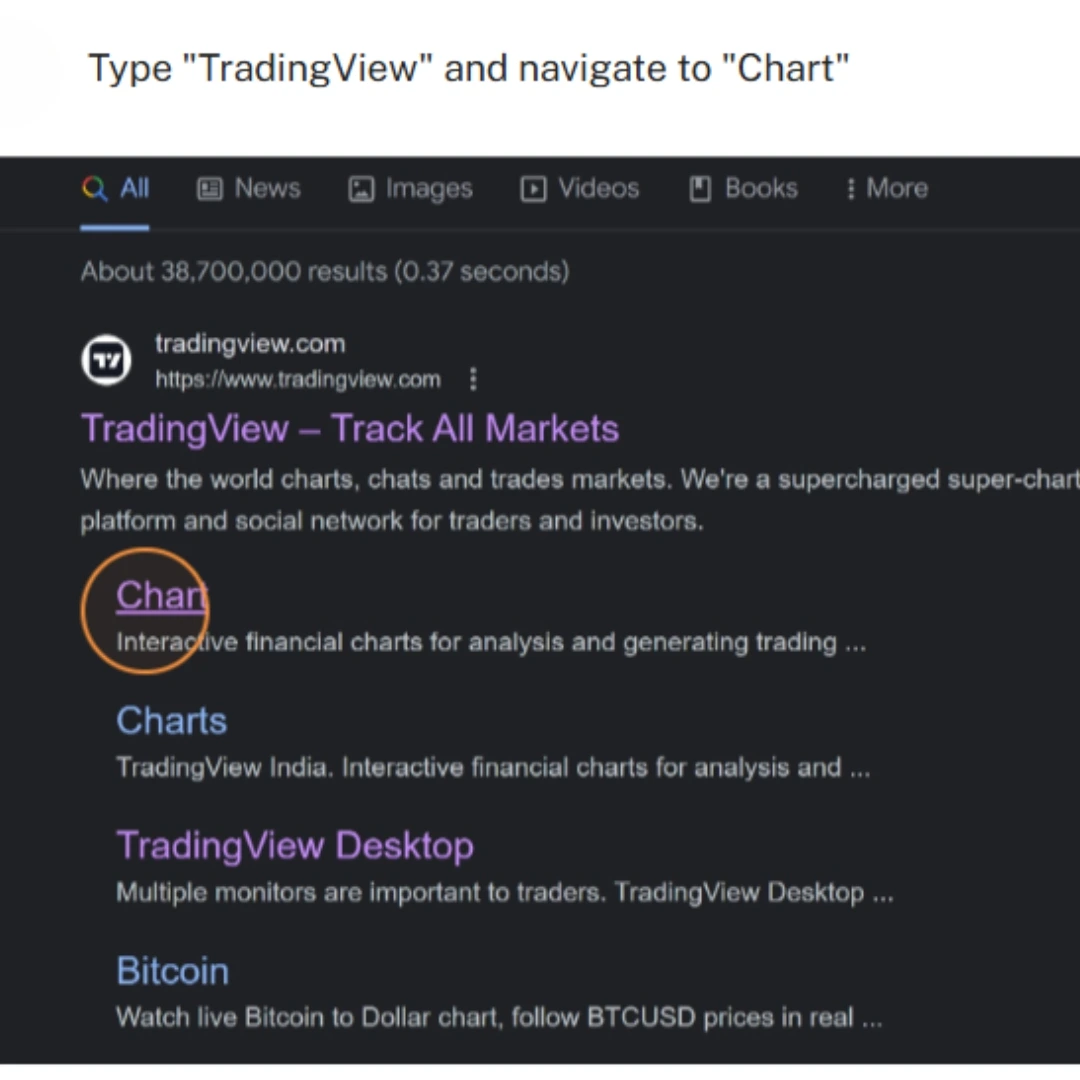
Open the Superchart, then pick your ticker and timeframe. - Launch the Superchart: Open your browser or desktop app and click Chart or Superchart from the main TradingView navigation menu.
- Select Your Desired Ticker: Load the financial instrument you plan to analyze (e.g., BTCUSD, EURUSD, AAPL, or NQ1!).
- Choose Your Timeframe: Set your primary execution resolution, such as the 5-minute, 15-minute, or 4-hour chart.
-
Step 3: Navigate to the Indicators and Strategies Menu
With your active market chart open, locate the top navigation toolbar where technical studies are stored.
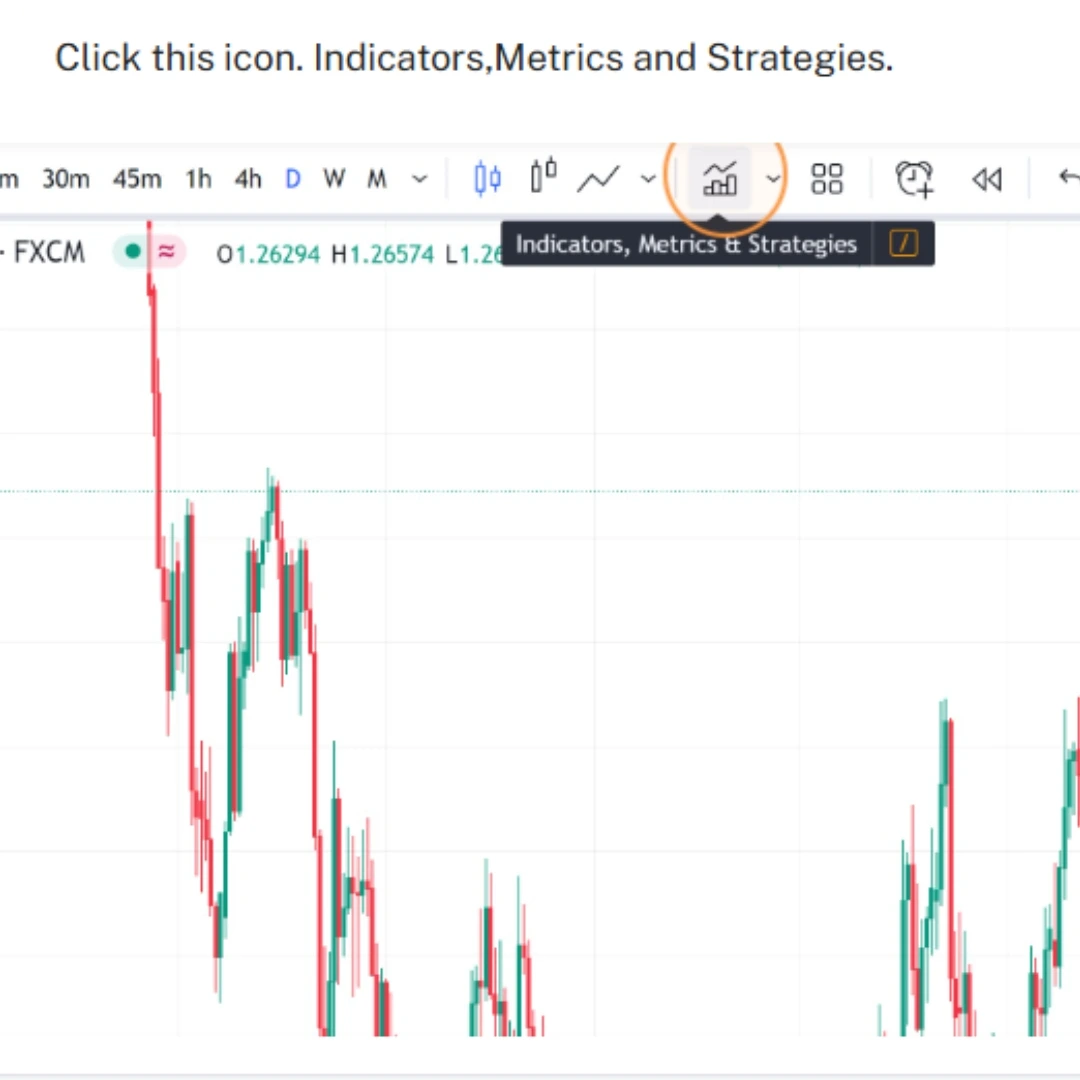
Click Indicators on the top toolbar, or press the / key. - Click the Indicators Button: Click the Indicators icon located on the top toolbar (or press the / forward slash shortcut on your keyboard).
- Open the Selection Window: The search pop-up window will appear over your central chart interface.
-
Step 4: Locate the Invite-Only Scripts Folder
Invite-only indicators are isolated from open-source public scripts to guarantee script integrity.
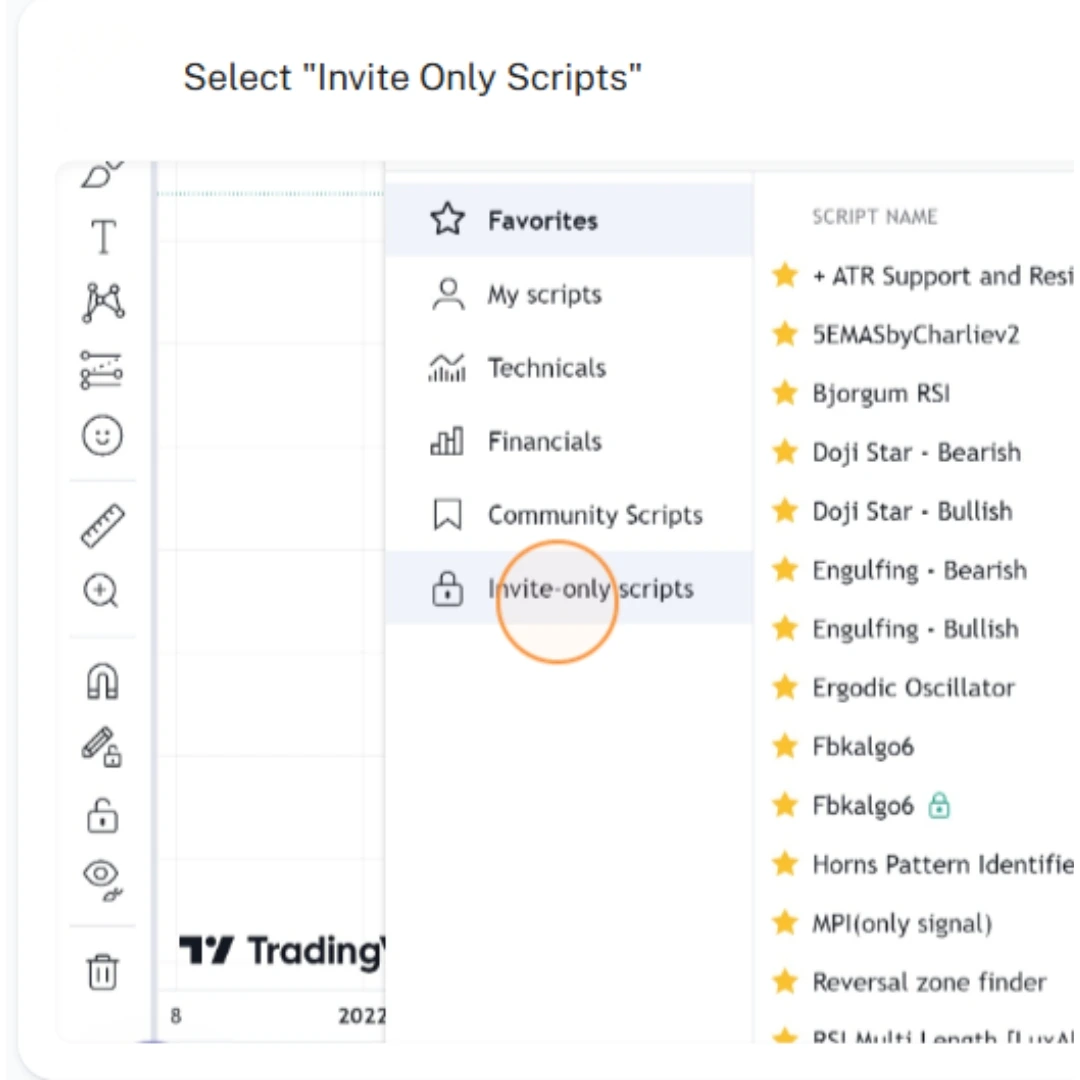
Syntium Algo appears inside the Invite-Only Scripts folder. - Select the Invite-Only Scripts Tab: Look at the left sidebar menu of the Indicators window and click Invite-Only Scripts.
- Verify Indicator Visibility: You will see Syntium Algo listed inside this private folder.
Troubleshooting Tip: If the Invite-Only folder does not appear immediately, refresh your browser tab (F5 or Ctrl+R) to sync your TradingView session with server permissions.
-
Step 5: Add Syntium Algo to Your Active Workspace
Loading the algorithm onto your visual workspace requires just a single click.
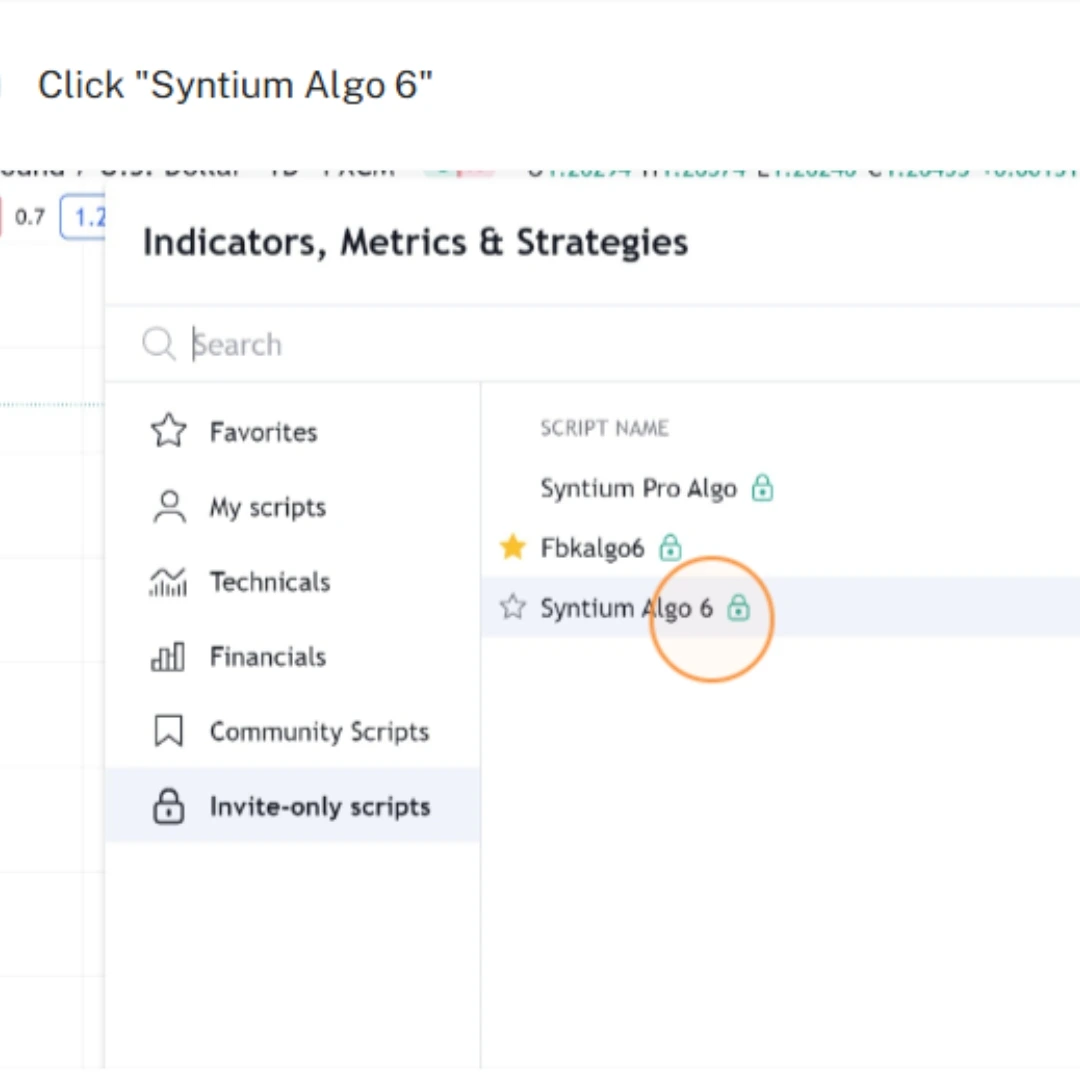
One click loads Syntium Algo onto your chart. - Apply the Script: Click on the Syntium Algo title in the list. The indicator will process in the background and overlay directly onto your candlestick chart.
- Save to Favorites: Hover your mouse over the indicator name inside the menu and click the Star icon. This adds Syntium Algo to your top toolbar favorites for one-click access in future trading sessions.
-
Step 6: Configure Indicator Parameters and Inputs
Syntium Algo includes customized input settings that allow you to adjust algorithm sensitivity, display preferences, and dynamic risk boundaries.
- Open Indicator Settings: Move your mouse over the Syntium Algo label printed on the top-left corner of your chart price pane. Click the Gear (Settings) icon.
- Adjust Signal Sensitivity: Select your preferred trading mode (e.g., Scalping, Day Trading, or Position Swing) inside the Inputs tab.
- Enable Risk & Overlay Features: Toggle feature attributions, meta-labeling filters, support-resistance levels, and hard stop-loss visualization lines on or off according to your visual preference.
- Confirm Changes: Click OK to lock in your custom setup.
Want to go deeper on each module? See the Syntium Algo strategy playbooks in our docs.
-
Step 7: Set Up Automated Alerts and Webhook Triggers
To automate execution or receive instant mobile updates, you can link Syntium Algo’s signal output to TradingView’s alert server.
- Click the Alert Bell Icon: Click the Clock/Bell icon on the right sidebar or select the three dots next to the indicator title and choose Add Alert on Syntium Algo.
- Configure Conditions: Select the specific trade event (such as Syntium Buy Signal, Syntium Sell Signal, or Stop Loss Breached) from the Condition dropdown menu.
- Connect Webhooks for Automated Trading: If using an execution router or trading bot connection, check Webhook URL under the Notifications tab and paste your API destination endpoint.
- Create Alert: Click Create to activate server-side real-time tracking.
New to alerts? Read our full guide on how to set alerts on TradingView.
Benefits of Adding Syntium Algo to TradingView
Integrating Syntium Algo into your everyday TradingView workspace provides a clear competitive edge over standard, retail indicator templates.

- Institutional-Grade Signal Quality: Uses advanced consensus evaluation and meta-labeling to filter out bad entries during low-volume or sideways market conditions.
- Full Logic Interpretability: Replaces opaque black-box predictions with Explainable AI parameters, showing you exactly why a buy or sell signal was triggered.
- Seamless Multi-Device Execution: TradingView runs fully in the cloud. Once set up, Syntium Algo signals sync across desktop browsers, mobile apps, and dedicated automated webhook routers.
- Integrated Capital Protection: Displays dynamic stop-loss levels, take-profit targets, and drawdown circuit breakers directly on your price candles to keep trading discipline tight.
- Multi-Asset Versatility: Functions seamlessly across volatile crypto pairs, major forex cross-rates, stock indices, and commodities without requiring complex custom coding.
Add Syntium Algo to TradingView and Upgrade Your Charting Today!
Pick a plan, add your TradingView username at checkout, and get access within minutes.
FAQs
No, you can add and run Syntium Algo on a free TradingView Basic account. However, a paid TradingView plan (Essential, Plus, or Premium) allows you to set more simultaneous real-time alerts and open multi-chart layouts.
Syntium Algo is distributed as an invite-only script to protect our proprietary code and ensure only authorized subscribers have access to our proprietary signal algorithms.
First, refresh your TradingView browser page (F5 or Ctrl+R) to update server access. If it is still missing, confirm that the username you provided matches your exact TradingView handle (not your email address).
Syntium Algo is for educational purposes only and is not financial advice. Trading involves risk, and past performance does not guarantee future results.
How to Set Alerts on TradingView: A Complete Step-by-Step Guide - Syntium Algo
[…] TradingView provides standard technical charting tools used by millions of retail and systematic traders worldwide. However, watching live price candles continuously leads to fatigue, missed entries, and emotional trading. Setting up real-time notifications allows you to automate market monitoring and execute strategies with precision. Learning how to set alerts on TradingView ensures you receive immediate pop-ups, app push notifications, or automated webhook executions whenever specific market conditions or technical indicators trigger. […]
How to Use Momentum Cloud Indicator: A Complete Trading Guide - Syntium Algo
[…] added to your TradingView chart, the Momentum Cloud overlays price candles to provide an instant read on market […]
How to Signup for TradingView - Syntium Algo
[…] stocks, forex, or cryptocurrencies, having access to advanced charting tools is essential. TradingView is widely recognized as one of the most powerful, user-friendly charting and social network […]