Disclaimer: Syntium Algo and all affiliated parties are not registered as financial advisors. The information provided on this site, along with the products and services offered by Syntium Algo, are intended for educational purposes only and should not be interpreted as financial advice. It is important to understand the risks involved in trading and be willing to accept any level of risk when investing in financial markets. Please note that past performance is not necessarily indicative of future results. Syntium Algo and all individuals associated with the company has no responsibility for your trading results or invest decisions. It is recommended to conduct through research, seek professional advice, and carefully consider your financial situation before making any trading or investment decisions.
TradingView provides standard technical charting tools used by millions of retail and systematic traders worldwide. However, watching live price candles continuously leads to fatigue, missed entries, and emotional trading. Setting up real-time notifications allows you to automate market monitoring and execute strategies with precision. Learning how to set alerts on TradingView ensures you receive immediate pop-ups, app push notifications, or automated webhook executions whenever specific market conditions or technical indicators trigger.
Step 1: Open the Alerts Panel
To manage or create notifications on your active workspace, locate the Alerts icon on the right-hand vertical sidebar of your TradingView interface.
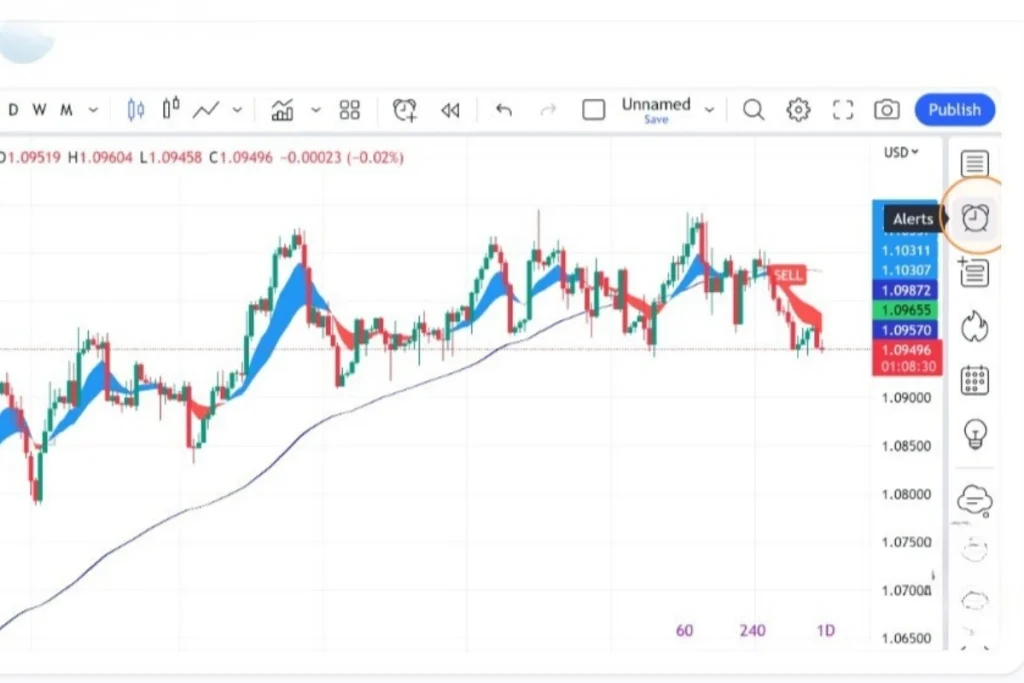
- Locate the Sidebar: Look at the vertical navigation bar running down the right side of your chart screen.
- Click the Alerts Icon: Click the Clock / Alarm icon to expand the central Alerts panel.
Step 2: Click the “Create Alert” Button
Once the Alerts panel expands, initialize the alert configuration dialogue.
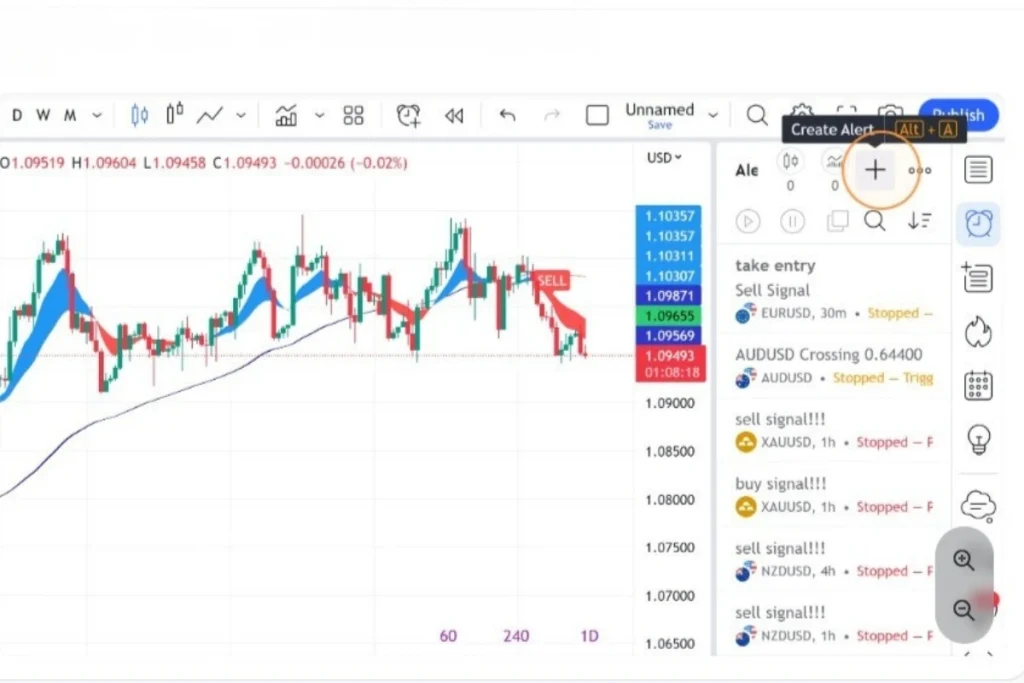
- Click the Plus (+) Icon: At the top of the expanded panel, click the Plus (+) button next to the search icon. Hovering over this icon displays the tooltip “Create Alert” (or use the shortcut
Alt + Aon Windows /Option + Aon Mac). - Open Configuration Window: The central Create Alert popup window will appear over your charting pane.
Step 3: Select Your Trading Pair under Condition
The top dropdown menu inside the alert interface determines which asset feed or indicator script the system monitors.
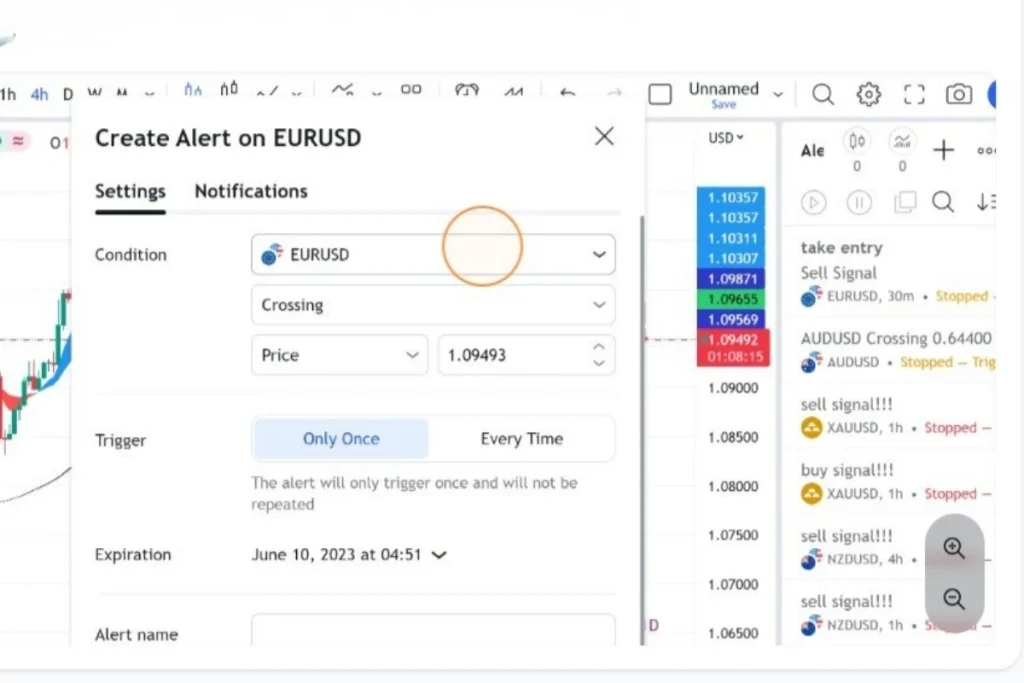
- Open the Condition Dropdown: Click the first selector field labeled Condition.
- Choose Your Symbol: By default, this field selects the symbol currently open on your chart (such as
EURUSD,BTCUSD, orXAUUSD). Click on the pair name to select or confirm your active ticker.
Step 4: Choose Syntium Algo
To trigger notifications based on technical algorithms rather than simple price levels, switch the condition to your loaded indicator script.
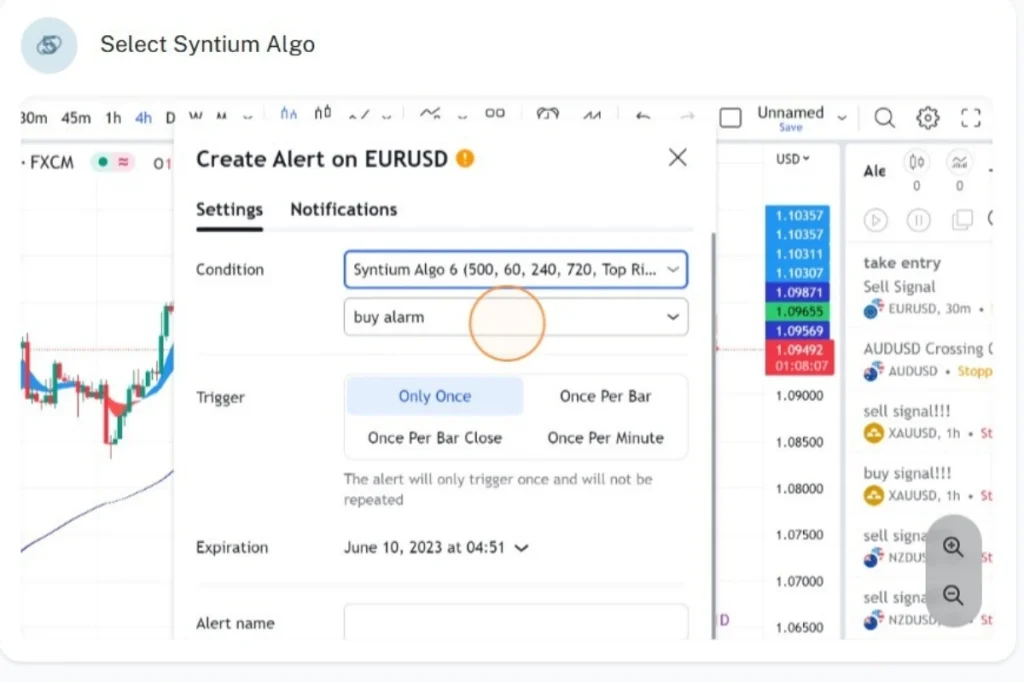
- Select the Algorithm: Click the Condition dropdown menu and select Syntium Algo (or your active technical study).
- Confirm Script Inputs: Ensure the indicator parameters match your current chart setup (e.g.,
Syntium Algo 6 (500, 60, 240, 720)).
Step 5: Select the Alarm Type (Buy or Sell Signal)
After linking the alert condition to Syntium Algo, select the exact trade trigger event you want to capture.
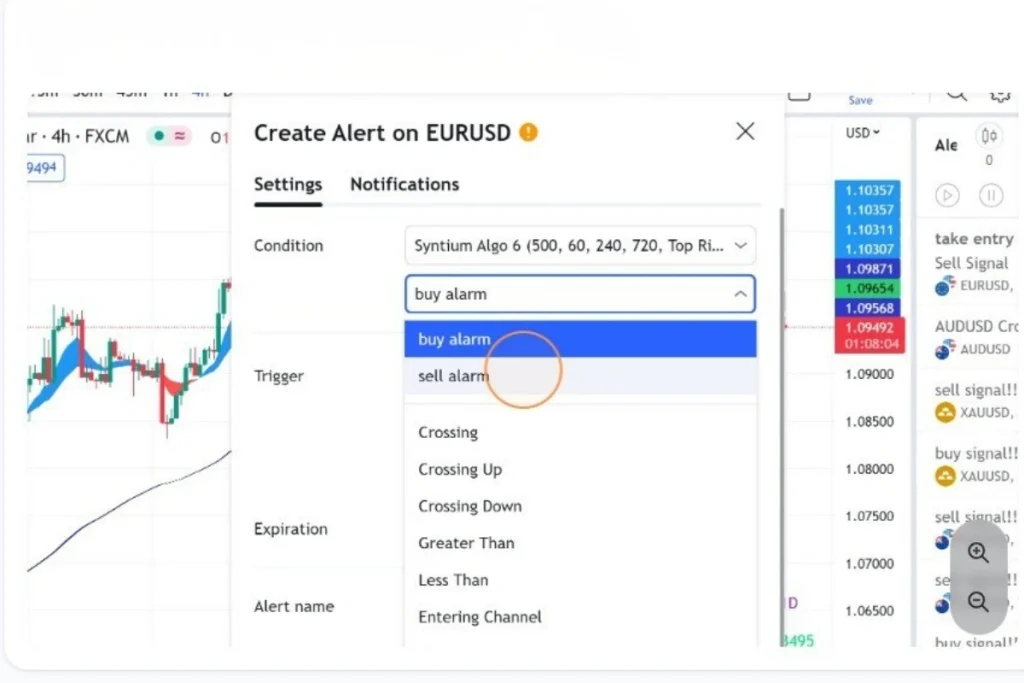
- Open the Signal Dropdown: Click the secondary condition menu directly below the indicator name.
- Select Signal Event: Choose buy alarm to receive long entry notifications or sell alarm to receive short entry notifications.
Step 6: Configure the Alert Trigger Frequency
TradingView allows you to customize how often an alert fires once market parameters are met. Selecting the correct trigger frequency prevents duplicate notifications and false signals.
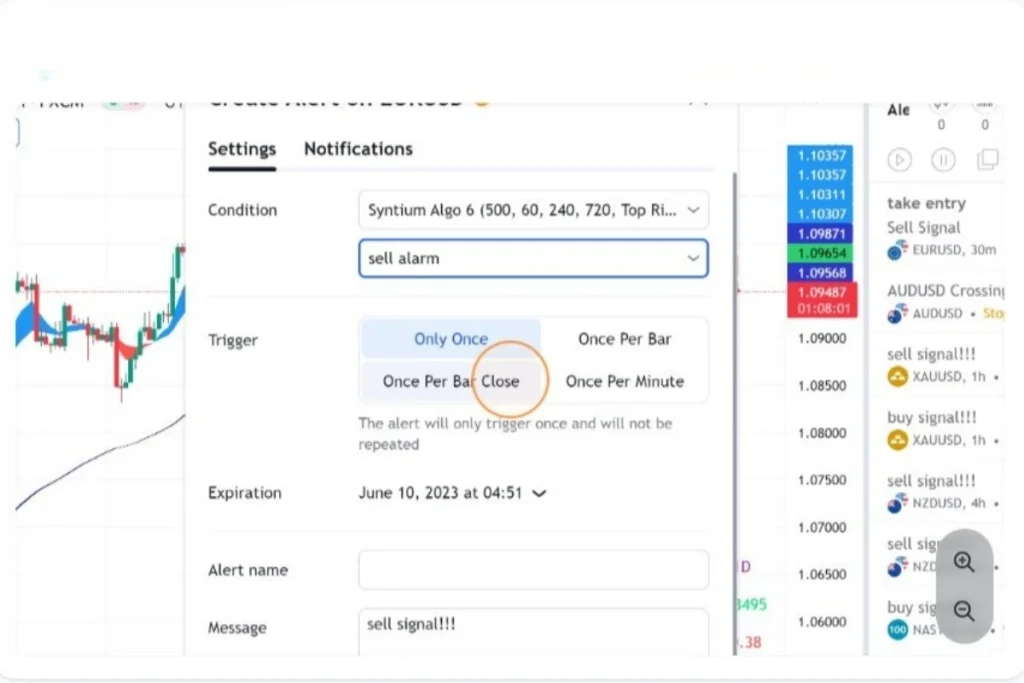
- Select Trigger Logic:
- Only Once: The alert fires once when conditions are met and turns off immediately.
- Once Per Bar: Fires every time the signal condition occurs during an open candle, but no more than once per bar.
- Once Per Bar Close: The alert fires only when the candle closes with the signal active. This is the recommended setting for preventing false breakouts caused by unconfirmed candle wicks.
- Once Per Minute: Fires at most once every minute while the condition remains true.
Step 7: Customize the Alert Message and Parameters
Add trade details, signal targets, or customized execution payloads inside the alert message box.
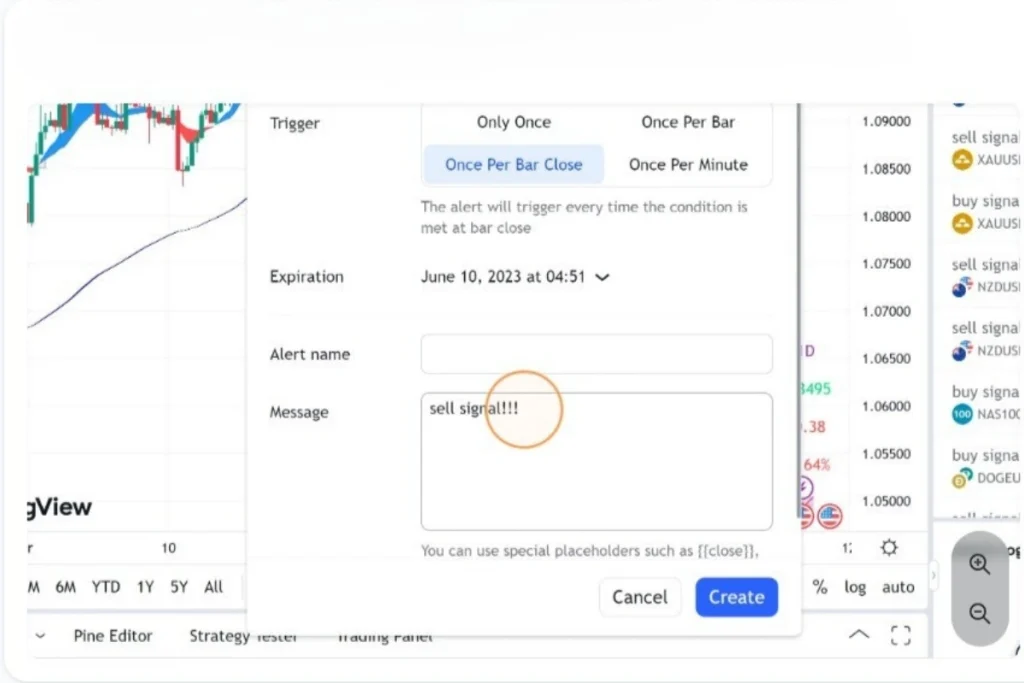
- Set Expiration Date: Define how long the alert remains active before auto-expiring.
- Name Your Alert: Enter an easily identifiable title in the Alert name field (e.g.,
EURUSD 4H Syntium Sell). - Input Custom Message Text: Click inside the Message text field and type your notes or placeholder variables (e.g.,
sell signal!!!or JSON webhook payloads for automated trading bots).
Step 8: Click “Create” to Activate the Alert
Finalize your alert settings to place the script into active server-side monitoring.
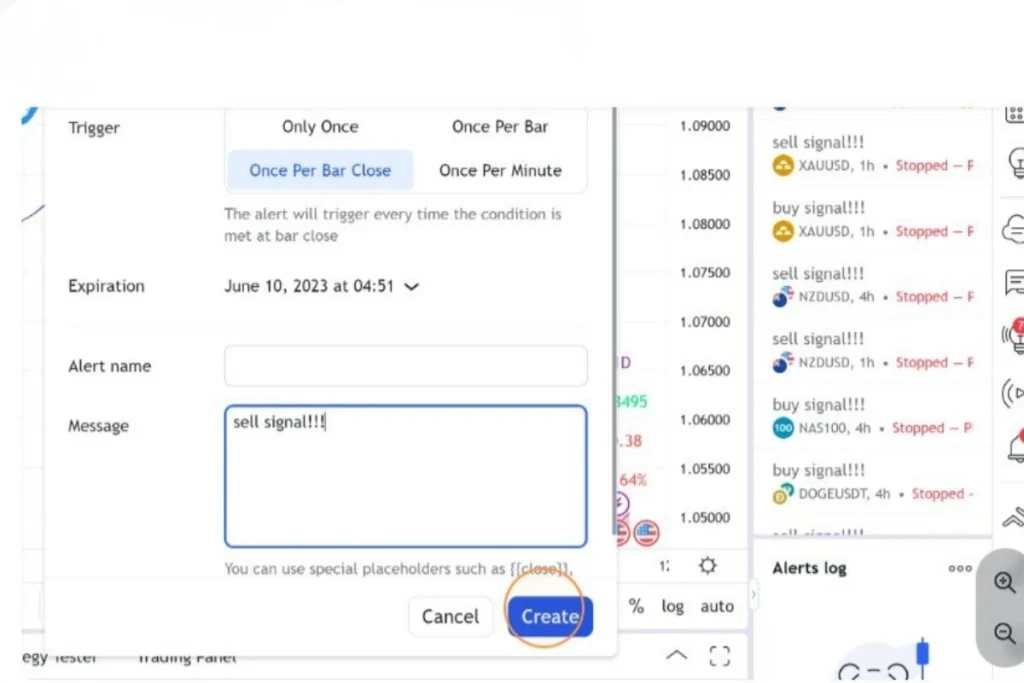
- Review Parameters: Double-check your chosen symbol, signal condition, trigger frequency, and alert message.
- Click Create: Click the blue Create button at the bottom-right of the dialogue window. Your alert is now live on TradingView’s servers.
Step 9: Manage or Remove Active Alerts
You can view, edit, pause, or delete active notifications at any time directly from your Alerts manager.
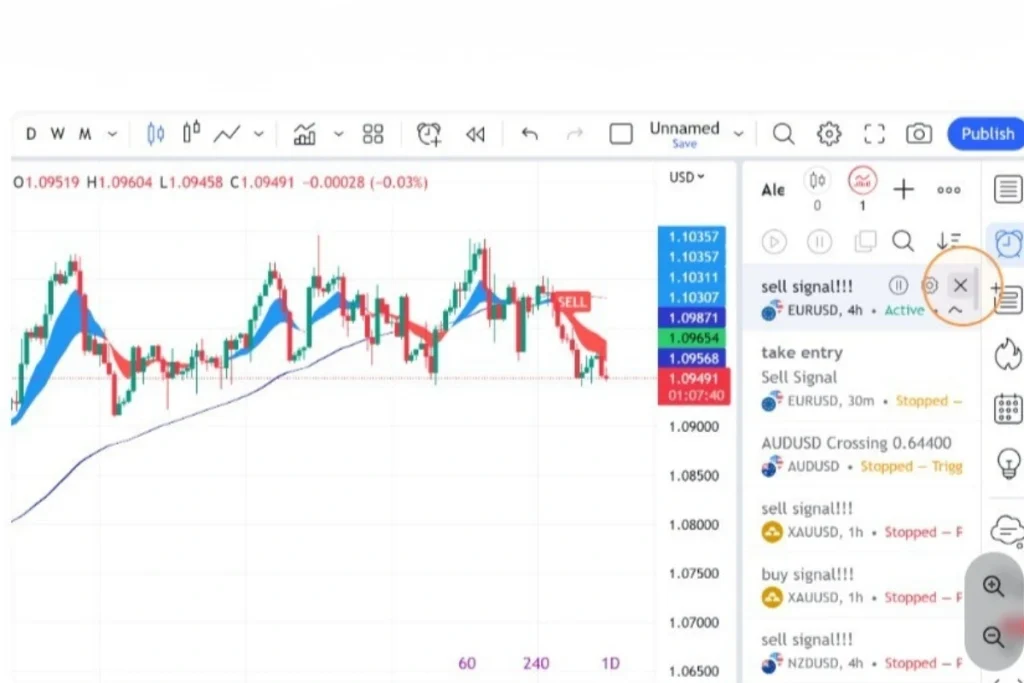
- Open Active Alert List: Click the Clock / Alarm icon on the right sidebar to view all active, triggered, or stopped alarms.
- Remove or Pause Alerts: Hover over any active alert in your list and click the Close (X) icon to delete it, or click the Pause/Settings icons to adjust its parameters.
Why Pair TradingView Alerts with Syntium Algo?
Configuring standard price level alerts notifies you when an asset crosses a line, but it lacks contextual market intelligence. Combining TradingView alerts with Syntium Algo transforms simple price notifications into automated, institutional-grade trade signals:
- Eliminates False Breakouts: Syntium Algo utilizes meta-labeling and cross-timeframe analysis to filter out bad market signals before sending an alert.
- Automated Webhook Execution: Connect your TradingView alerts directly to execution platforms or broker APIs to execute trades instantly without manual intervention.
- Multi-Timeframe Synchronization: Set up alerts that cross-check dynamic support/resistance zones, volatility metrics, and trend momentum simultaneously.
FAQs
Do TradingView alerts work when my computer is turned off?
Yes, TradingView alerts run on server-side infrastructure. Once created, alerts will trigger and send mobile push notifications, emails, or webhooks even if your browser or computer is turned off.
What is the difference between “Once Per Bar” and “Once Per Bar Close”?
“Once Per Bar” triggers the moment a condition is met during an open candle. “Once Per Bar Close” waits until the candle officially closes before triggering, ensuring the signal is confirmed and preventing false alarms caused by temporary price spikes.
Can I send TradingView alerts directly to a crypto broker or trade execution engine?
Yes, by enabling the Webhook URL option under the alert Notifications tab, you can send automated JSON signals directly to execution routers like Syntium Algo, 3Commas, or custom broker endpoints.
How to Use Momentum Cloud Indicator: A Complete Trading Guide - Syntium Algo
[…] Momentum Cloud is a dynamic visual trend overlay designed for TradingView charts. Unlike traditional static moving averages that clutter your screen, the cloud expands and […]